Photo Cleaner
How to clean up your iPhone camera roll fast
Updated · By Mohamed Elatabany
Most cleanup attempts stall because the Photos grid makes every decision slow: select, scroll, second-guess. The swipe method replaces that with one decision per photo, and ten minutes a day is enough to make steady progress through even a large library.
Why swiping is faster than selecting
In a grid you are looking at dozens of thumbnails at once, and deciding about all of them at the same time. Swiping shows one photo, full size, and asks one question: keep or delete? Left to delete, right to keep. You don't scroll back, you don't hunt for checkboxes, and the full-size view makes blur and bad framing obvious.
The other reason it works: you can stop at any time. There is no half-finished selection to lose.
The 10-minutes-a-day plan
- Pick one slice. A single month, or one category such as Screenshots. Small, finished batches feel better than an endless roll.
- Set a 10-minute timer. Short sessions keep decisions sharp. When you start agonizing over photos, it is time to stop.
- Swipe without overthinking. Delete the obvious: screenshots you no longer need, accidental pocket shots, receipts, the seventh copy of the same sunset. Keep anything you hesitate on; you can come back to it later.
- Review the Trash Bin. A quick scroll catches mistakes before anything is deleted.
- Empty it and move on. Tomorrow, the next month.
What to clear first
Order matters if you want visible results early:
- Screenshots. The easiest decisions in your library. Most were useful for a day.
- Similar shots. Keep the best of each group and lose the rest.
- Large videos. Fewer decisions, the most space. See finding large videos.
- Old months. Then work through the library month by month, newest or oldest first.
How to do it with Photo Cleaner
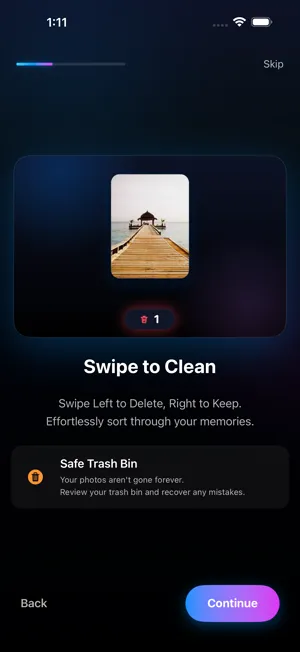
- Install Photo Cleaner and give it Full Access to your photos.
- Choose where to start: Memory Lane groups photos by month, or pick a category such as Screenshots, Videos, Live Photos, Bursts or WhatsApp/Messenger.
- Swipe left on photos to delete and right to keep.
- Open the Trash Bin, recover anything you swiped by mistake, and empty it. iOS asks you to confirm, and the photos go to Recently Deleted for 30 days.
- Check the session recap: how many photos you cleaned and how much storage you freed. Stats and streaks track the habit over time.
Today's Throwback is a good daily starting point: a small set of photos from this day in past years, which is exactly the right size for a ten-minute session.
Can you swipe in the Photos app itself?
Not to delete. In Photos, swiping left and right moves between photos, and swiping up shows details. To delete you tap the trash icon and confirm each time, or select many in the grid. It works, but it is slower for a big backlog.
Making it stick
- Same time every day. Commute, coffee, the first ten minutes after dinner.
- Stop new clutter. Turn off auto-save in chat apps (WhatsApp: Settings → Chats → Save to Photos) and delete screenshots once you have used them.
- Watch the number. Seeing storage freed after each session is motivating. Streaks help too.
- Don't aim for perfect. A library that is 80% tidier is a win. Keep anything you are unsure about.
If you swipe the wrong way
Mistakes happen when you move fast, and the method is built to absorb them. In Photo Cleaner, a photo you swiped left is only in the Trash Bin: open it and restore the photo before you empty it. If you already emptied the Trash Bin, open the Photos app, go to Utilities → Recently Deleted, unlock it with Face ID, Touch ID or your passcode, select the photo and tap Recover. iOS keeps deleted items there for 30 days, so a quick check after each week's sessions is enough to catch anything you regret.
How long will it take?
It depends on your library and how decisive you are. Because each swipe takes a second or two, ten minutes covers far more photos than the same time in a grid. The point of the daily plan is that you don't need to know the total: you just keep going until the backlog is gone, then use a few minutes a week to stay on top of it.
Related: free up iPhone storage from Photos, delete duplicate photos.
Try the faster way
Photo Cleaner is free to download, with 100 deletions free, one time.